
Before you start
CrossMacro schedules saved mouse and keyboard macros for one-time execution, repeating intervals, or selected weekdays. A scheduled macro sends input to your active desktop: it is not an independent background mouse. Suitable tasks include a tested report-export sequence or a simple application-navigation routine.
Install CrossMacro and verify manual playback first. Follow the Linux setup, Windows desktop requirements, or macOS permission instructions. On macOS, recording needs Input Monitoring, playback uses Accessibility approval, and visual checks need Screen Recording. Linux input, capture, and window capabilities depend on the package and desktop.
For your first trial, use a disposable document rather than purchases, deletions, or sensitive data. Prepare the target window, focus, document, and screen layout exactly as the macro expects.
Create a schedule
- Save a safe macro. Record a short sequence with the default F8 recording hotkey, save the macro file, then replay it with F9 in the intended starting state. Hotkeys are customizable.
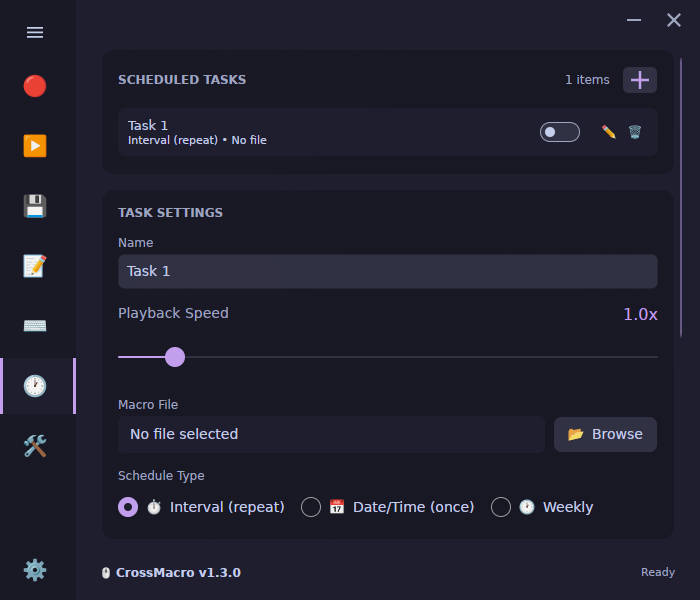
- Open Schedule. Add a task with the plus control, select it, give it a descriptive name, and choose the saved macro file.
- Choose the timing. Select an interval, a one-time date/time, or a weekly schedule. Weekly presets include every day, weekdays, weekends, and custom days. The interval mode also supports randomization.
- Check playback and readiness. Set the task's playback speed, allow time for the target application to respond, and verify any window or visual checks in the macro on your desktop.
- Enable and observe. Turn on the task's row toggle, inspect its next-run and status information, and watch a controlled execution. Disable the task when the trial is complete.
Schedules belong to the active profile. Changing profiles changes the loaded automation configuration; check the intended profile before relying on a task.
Optional CLI workflow
Using an existing harmless practice.macro, validate the file and create a disabled interval task. Portable installations may require the executable's full path instead of crossmacro.
crossmacro macro validate ./practice.macro
crossmacro play ./practice.macro --dry-run
crossmacro schedule add --name "Practice interval" --macro ./practice.macro --interval 10m
crossmacro schedule list --json
Copy the returned task GUID and replace <task-id> below. Inspect first; enable only after preparing the target desktop. The final command disables the task when you finish.
crossmacro schedule next <task-id> --json
crossmacro schedule enable <task-id>
crossmacro schedule disable <task-id>
New CLI schedules are disabled by default. A successful dry run validates the supported workflow without sending input; it cannot prove future focus or application readiness. See the schedule command reference for other timing modes.
Keep the runtime available
The GUI process or GUI-less desktop runtime must remain running in an active desktop session. With tray support enabled, closing the window can hide it while the process continues. Fully exiting stops that runtime's scheduling.
Alternatively, crossmacro headless starts the GUI-less runtime; it still needs a desktop session. The Linux input daemon alone is not a scheduler. Do not plan on waking the computer, operating through a locked screen, running while logged out, or automatically replaying missed executions.
Common questions
Which timezone does the CLI use?
Weekly --time uses local time. A one-time --at value without an offset is interpreted as local time. Daylight-saving edge cases follow the host runtime's local-time rules.
Why does a task not run?
Check its enabled state, active profile, next run, runtime process, and target application's availability. For Linux input prerequisites, follow the Wayland macro guide. If your task is simply inserting reusable text while typing, text expansion may be the more direct workflow.