
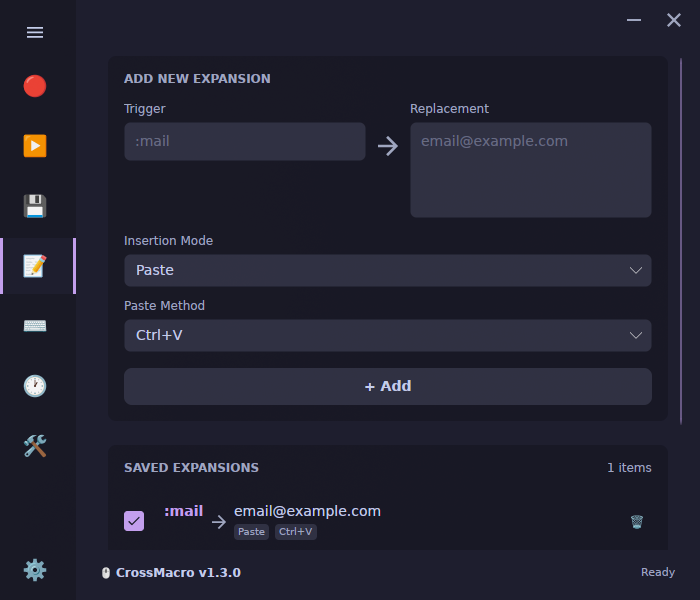
What text expansion does
CrossMacro text expansion replaces a short typed trigger with saved text on Linux, Windows, and macOS. For example, typing :mail can inserthello@example.com. Use it for non-sensitive email addresses, signatures, repeated replies, or boilerplate you would otherwise retype.
This is different from a full mouse and keyboard macro. An expansion inserts text; a recorded macro replays a sequence of input actions, such as navigating an interface. For that workflow, start with theLinux and Wayland macro recording guide. Neither approach guarantees that every target application accepts automated input.
Before you start
Install CrossMacro for your platform and keep its desktop runtime running in an active desktop session. Complete the relevant input setup before creating rules:
- Linux: follow theLinux setup referencefor your package. Native daemon-backed packages and portable Wayland packages use different paths. Flatpak and AppImage on Wayland need readable input event devices and writable uinput; clipboard access alone is insufficient.
- macOS: macOS 14 or newer requires Input Monitoring for capture and Accessibility approval for insertion. Follow themacOS privacy instructions. Ordinary text expansion does not require Screen Recording permission.
- Windows: follow theWindows installation and desktop-session guide. Normal input use has no CrossMacro-specific Windows privacy prompt, but a target application can still reject an operation.
Create your first expansion
- In Settings, turn on Enable Text Expansion.
- Open Text Expansion and enter
:mailas the trigger andhello@example.comas the replacement. - Choose an insertion mode, add the entry, and leave that individual entry enabled.
- Keep CrossMacro running, focus a disposable plain-text document, and type
:mailusing exactly the same case. - Check that the trigger is replaced by the email address. Repeat the check in your intended application before relying on the rule.
Expansion happens as soon as the typed buffer ends with an enabled trigger.No Space or Enter is required. Matching is case-sensitive and does not require a word boundary. Choose short, distinctive triggers, such as a colon followed by a word, and avoid overlapping triggers or ordinary words that could expand unexpectedly. Type the trigger for testing; do not assume pasting it activates a rule.
Choose an insertion mode
Paste inserts replacement text through the clipboard. CrossMacro attempts to restore clipboard contents afterward, but restoration is best-effort and does not guarantee preservation of every clipboard format. Choose a paste method appropriate for the target application.
Direct typing inserts through simulated typing instead of clipboard paste. It offers fast batched and compatible key-by-key methods. Test your chosen method with the target application and keyboard layout; neither mode promises universal compatibility. Start with a short, harmless replacement so incorrect insertion is easy to spot and discard.
Common questions
Why does my saved expansion not run?
Check both the global Settings switch and the entry's enabled state, then the trigger's exact case, active profile, running desktop runtime, and input permissions. Profiles have their own expansion settings and entries.
Does expansion work after I exit CrossMacro?
No. Fully exiting the runtime stops expansion. Hiding a tray-enabled window can leave it running. TheGUI-less desktop runtimeis another option, but it still requires an active desktop session.
Can I manage expansions from the command line?
Yes; see thetext-expansion CLI reference. Its test command resolves and reports a replacement without typing into the desktop. Use a harmless editor to verify actual insertion.