
Linux
Wayland & X11Flatpak, native packages, AppImage, and NixOS. Input setup depends on your package and desktop.
Get it on Flathub Linux setup & other packagesOpen-source desktop automation
Record, edit, and replay repetitive desktop tasks on Linux, Windows, and macOS. Turn a routine into a workflow you can save, schedule, and reuse.
Free and open source. Built for your desktop.
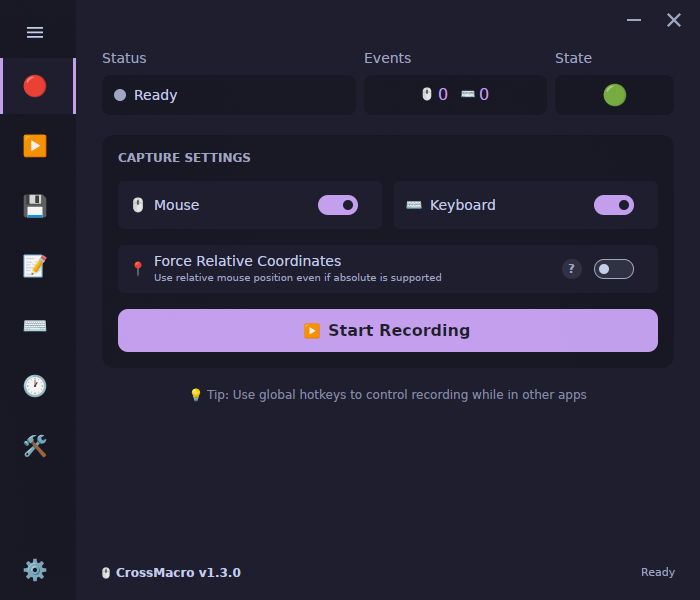
Start here
Flatpak, native packages, AppImage, and NixOS. Input setup depends on your package and desktop.
Get it on Flathub Linux setup & other packagesInstall from the Microsoft Store for managed updates, or choose a portable build from GitHub.
Get it from Microsoft Windows setup & portable buildsChoose the matching DMG. Builds are unsigned; the setup guide covers Gatekeeper and privacy permissions.
Find your macOS download macOS installation guideA small workflow. A useful habit.
Start with a short task in a test document. Capture it once, make it yours, then let CrossMacro repeat the steps.
Press F8, perform your mouse and keyboard actions, then press F8 again to finish.
Open the visual editor to remove an extra click, adjust a delay, or add a loop. Save the workflow for later.
Press F9 to replay and F10 to pause. Add a shortcut or schedule when you are ready.
Complete your platform’s input permissions first. Hotkeys are customizable. Read the first-macro guide
Inside CrossMacro
Take a closer look at the app.
Select a screenshot to view it full size.
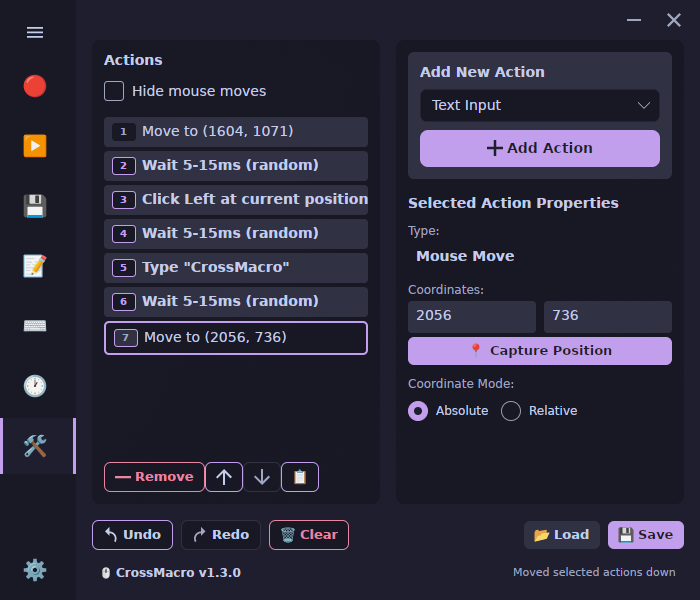
Visual macro editor
Trim pauses, reorder actions, and build workflows with text, conditions, loops, and image-based steps.
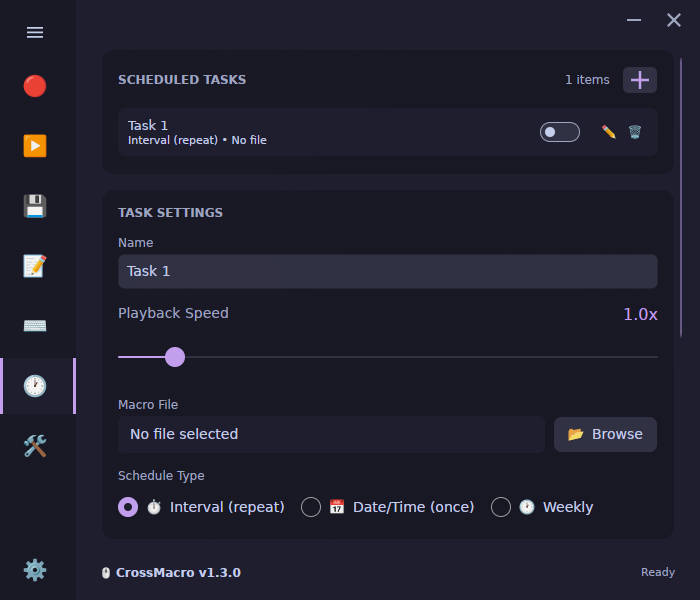
Scheduled tasks
Run a saved macro once, at an interval, or on a recurring schedule in your desktop session.
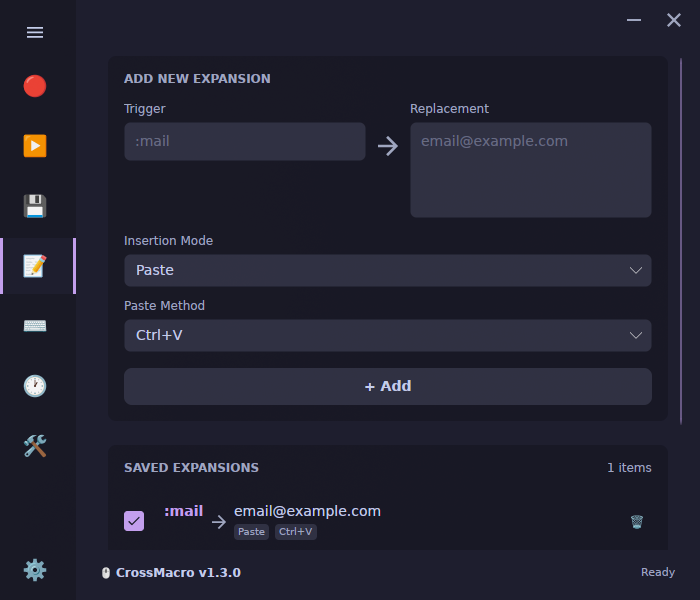
Text expansion
Turn short triggers into the text you use every day, with individual controls for each expansion.
Bind saved macros to keyboard or mouse shortcuts. Toggle playback or run a macro while a key is held.
Wait for a color or image before the next action, instead of relying only on fixed delays.
Save reusable macro files and separate work, testing, and personal automation into named profiles.
Practical guides
Set up a Linux macro recorder, expand everyday text, or schedule a desktop task. Start with a small, safe example.
A practical guide to installing CrossMacro, recording a small task, and replaying it on your Linux desktop—with the setup details that Wayland needs.
Read the guideReplace short triggers with email addresses, replies, and reusable snippets. Learn how to set up text expansion and choose the right insertion mode.
Read the guideTurn a tested macro into a scheduled desktop task. Choose when it runs, understand what must stay open, and keep automation predictable.
Read the guideLinux, included
Record and replay on Wayland and X11. CrossMacro supports multiple Linux input backends, so setup and available features depend on your desktop and installation method.
Find the right setup for your desktopCheck the Linux guide for compositor support, permissions, and first-run setup.
When you need to go further
Record, inspect, validate, and run workflows from the CLI. Connect trusted local tools through MCP when your automation needs more than a button.
Desktop automation still needs an active desktop session.
# Check a workflow without sending input
crossmacro run \
  --step "move abs 800 400" \
  --step "click left" \
  --dry-run
No input injection. No shell execution.
Make room for the work that matters
Start with one small task. Build from there.